• Quick Setup Guide
    • Installation
    • Voice Typing & Translation
    • Voice Command
  • V-AI
    • AI Language Modes
    • V-AI Chat With Images or Files
  • AI Writing
    • Long Writing
    • Business Proposal
    • Other Writing Modes
  • AI PPT
    • Word To PPT
    • Customize PPT Template
  • AI Image
  • AI Assistants
    • AI Summarization
    • OCR
  • AI Smart Toolbar

Quick Setup Guide#

Jethro V1 AI Mouse Hardware Overview
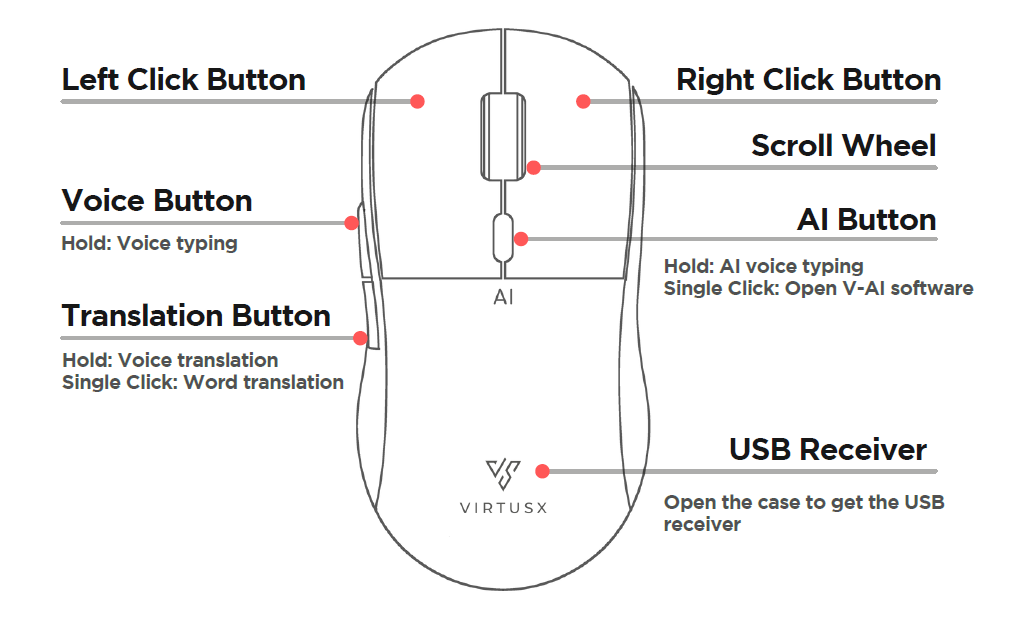
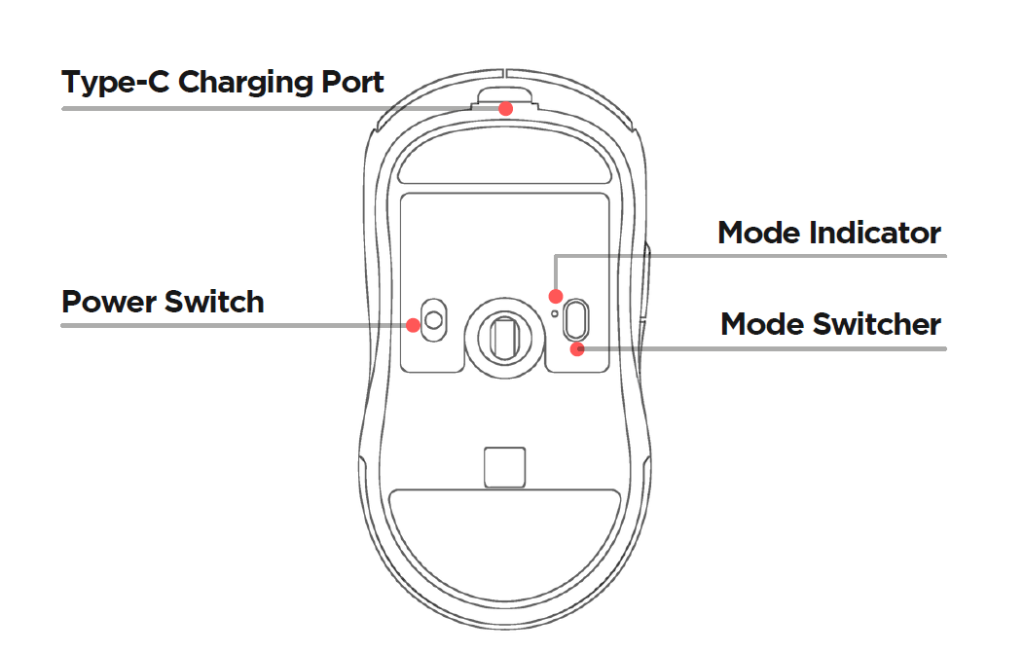
Jethro V1 AI Mouse

Hardware Setup

Charging the Mouse

Fast charging isn’t supported. Use the included USB-C cable for safe charging. It is recommended to connect the mouse to your computer for charging.

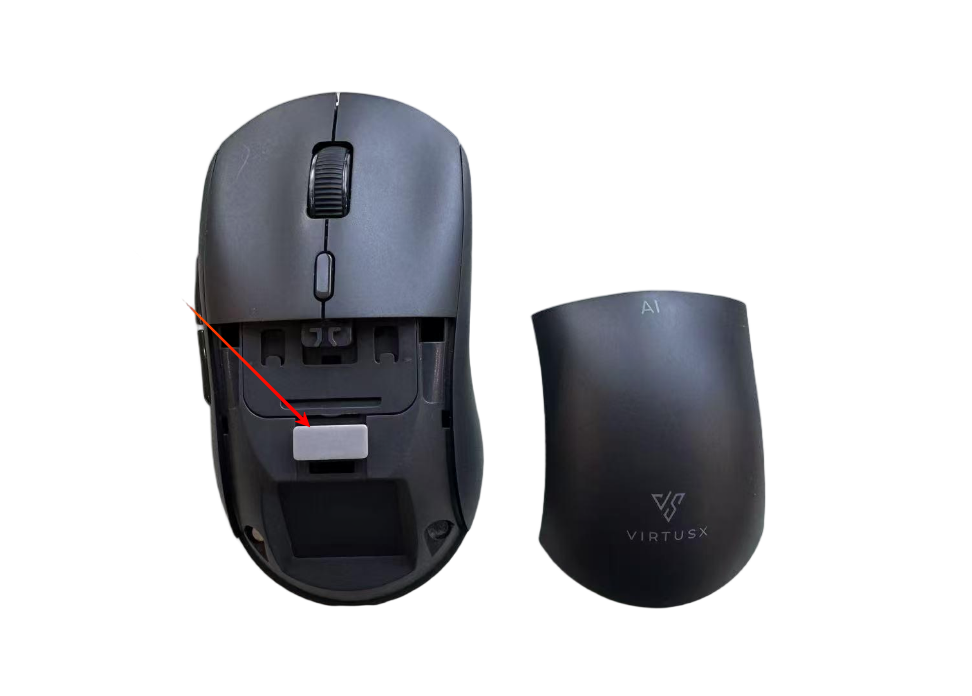
USB Receiver Location

The USB receiver is stored inside the mouse. Open the back cover to access it.
Multiple Connections

Connect up to 3 different devices. Use the button on the right side to switch between them. Different lights indicate each connected device.


Installation#


Download V-AI Suite

Windows 10 or above

  • Important: If you use McAfee or Norton, you may see a warning. Please allow the installation to continue

MacOS 10.15 or above

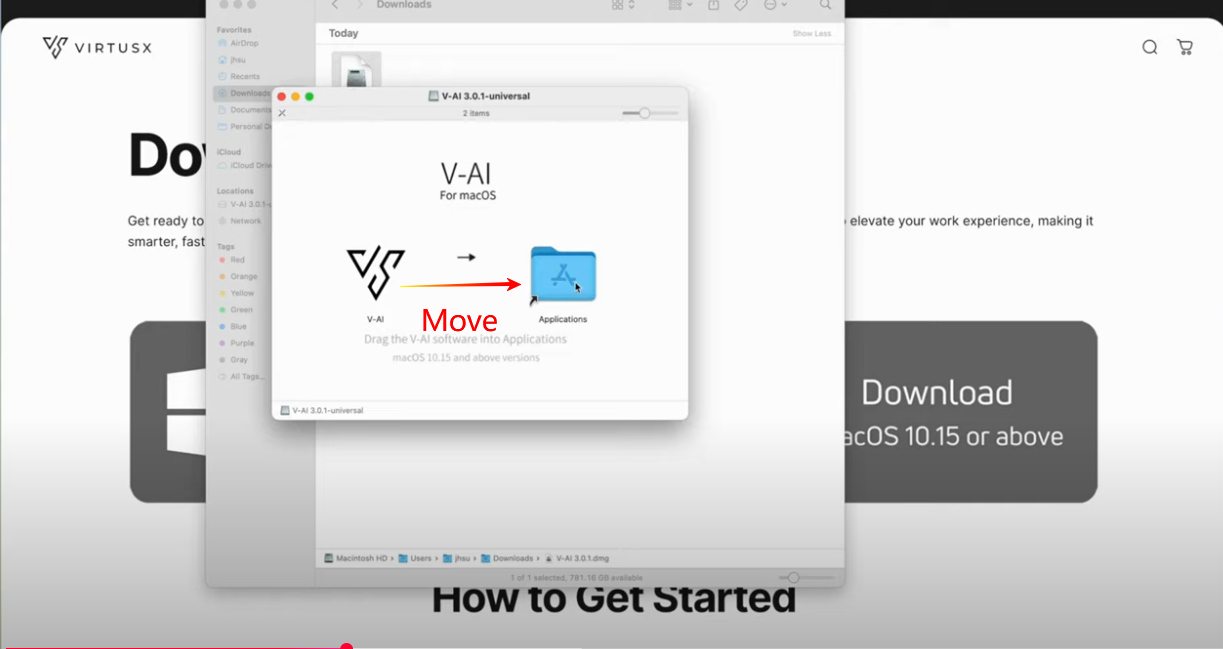
  • After downloaded V-AI Suite installation file, double-click the file, then drag the V-AI icon to Applications to install.
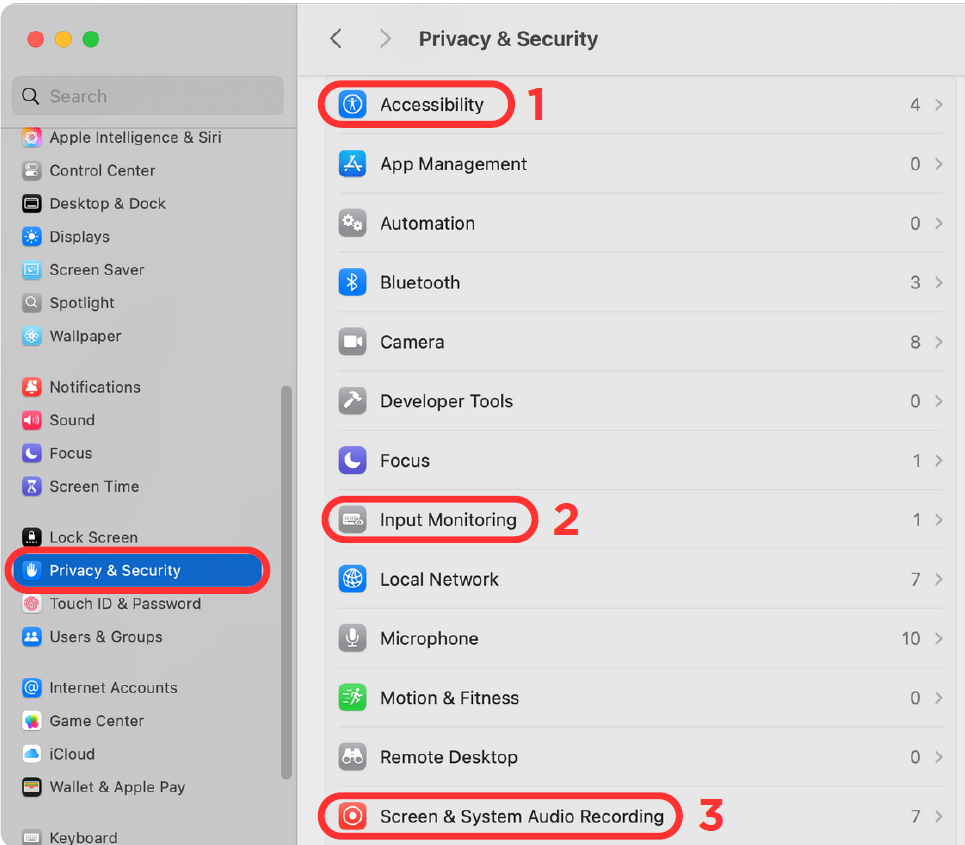
  • After installation, open System Settings > Privacy & Security to enable the V-AI software under the following sections:.
    • Accessibility
    • Input Monitoring
    • Screen Recording & System Audio Recording

Voice Typing & Translation#

Complete Voice Typing Guide

Welcome to the comprehensive guide for using the Voice Typing feature on your Virtusx AI Mouse. This guide will walk you through setting up and using all voice-related functions, including voice typing, voice commands, and voice translation.

Setting Up Voice Typing/Speech to Text

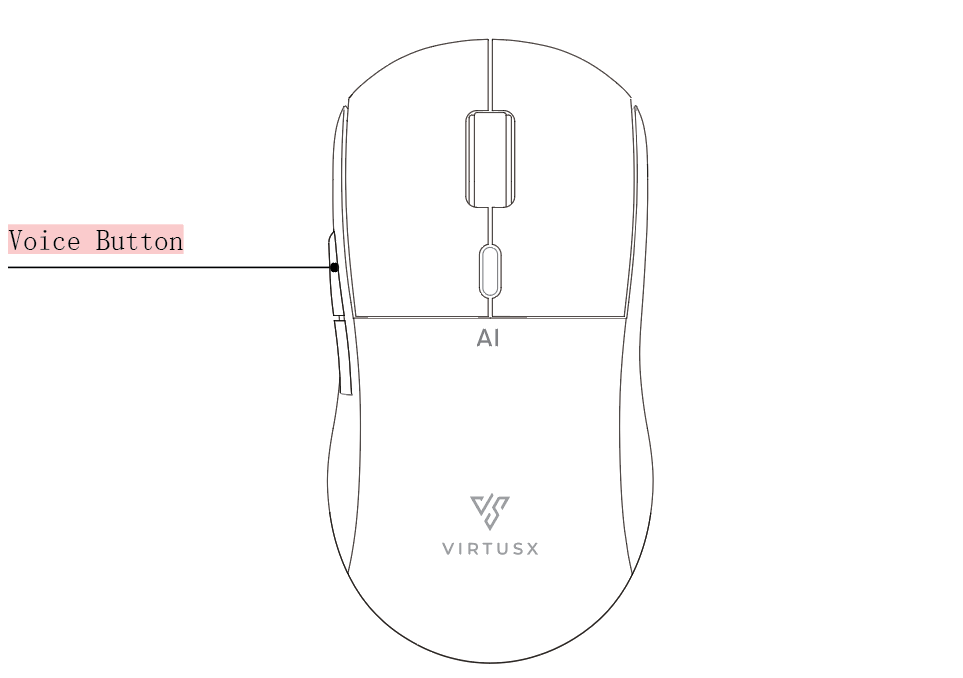
Voice Button location on the Virtusx AI Mouse – Press this button to activate voice typing

Language Configuration

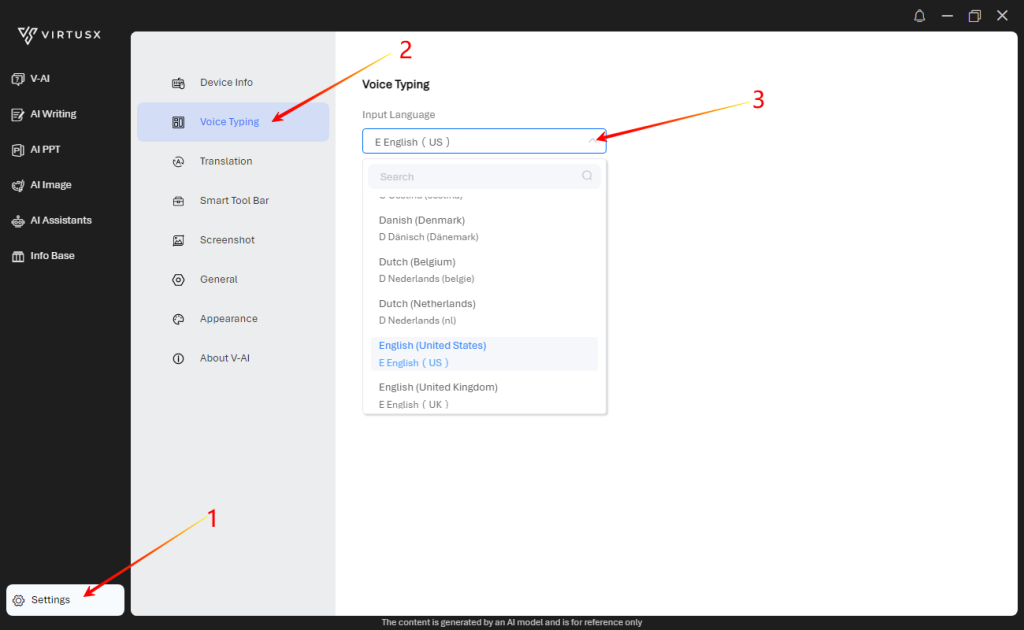
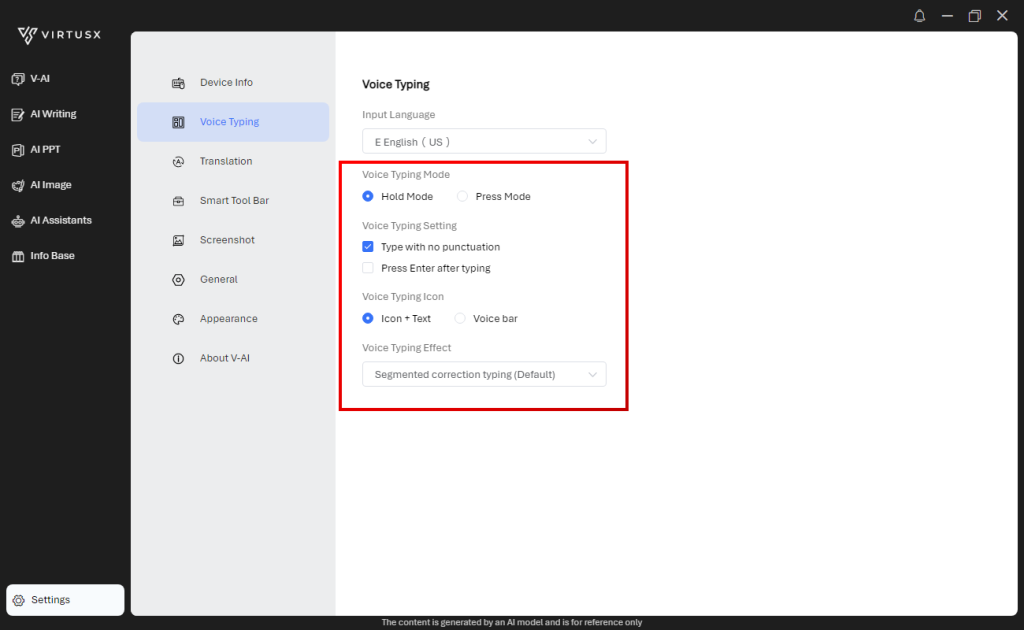
Before using voice typing, you need to select your preferred language. This ensures accurate speech recognition and transcription. Follow these steps to configure your language settings:

  1. Open the Settings menu
  2. Navigate to Voice Typing section
  3. Select your preferred language from the dropdown menu
Voice Typing Language Settings screen – Select your preferred language for optimal recognition

Important:

For best results, make sure to select the language that matches what you’ll be speaking. Using a different language setting than what you’re speaking will result in poor recognition accuracy.

Voice Typing Modes

The Virtusx AI Mouse offers two different modes for voice typing, giving you flexibility based on your preferences and usage scenarios:

Hold Mode

Hold Mode is ideal for shorter dictations or when you need precise control over when the system is listening:

  • Press and hold the voice typing button
  • Begin speaking while continuing to hold the button
  • Release the button when you’ve finished speaking
  • Your speech will be converted to text immediately

Press Mode

Press Mode is perfect for longer dictations when you don’t want to hold the button continuously:

  • Quick click the voice typing button once to activate
  • Begin speaking (the system will continue listening)
  • Click the button again when you’ve finished speaking
  • Your entire speech will be converted to text

Pro Tip:

Use Hold Mode in noisy environments to prevent unwanted background noise from being captured. Use Press Mode for longer dictations or when you need your hands free while speaking.

Advanced Voice Typing Settings

Customize your voice typing experience with these advanced settings to match your specific needs:

Punctuation Options

Type with no punctuation: When enabled, this option will ignore automatic punctuation during voice typing.

  • Enabled: The system will not add any punctuation marks automatically
  • Disabled (default): The system will intelligently add commas, periods, and question marks based on your speech patterns

Enter Key Behavior

Press Enter after typing: Controls whether the system automatically adds a line break after each voice input.

  • Enabled: The system will automatically press Enter after each voice input, creating a new line
  • Disabled (default): The system will continue typing on the same line for consecutive voice inputs

Recommendation:

For most users, we recommend keeping automatic punctuation enabled for natural-sounding text. Enable “Press Enter after typing” when creating lists or when you want each voice input on a separate line.

Voice Typing Interface

When you activate voice typing (using either Hold mode or Press mode), visual indicators will appear on your screen to show that the system is listening and processing your speech.

Voice Icon

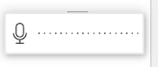
The Voice Icon appears in the corner of your screen when voice typing is active. This icon indicates that the system is listening to your speech.

Voice Icon that appears during active voice typing – indicates the system is listening

Voice Bar

The Voice Bar provides visual feedback about your voice input. It shows the audio levels as you speak, helping you confirm that your voice is being detected properly.

Voice Bar showing voice input status – the moving bars indicate audio levels being detected

Troubleshooting:

If you don’t see the Voice Icon or Voice Bar when attempting to use voice typing, check that your microphone is properly connected and that you’ve granted the necessary permissions to the application.

Voice Translation

The Voice Translation feature allows you to speak in one language and have your words translated and typed in another language. This powerful tool breaks down language barriers and enables multilingual communication.

Voice Translation interface – Speak in one language and get text in another

Setting Up Translation Languages

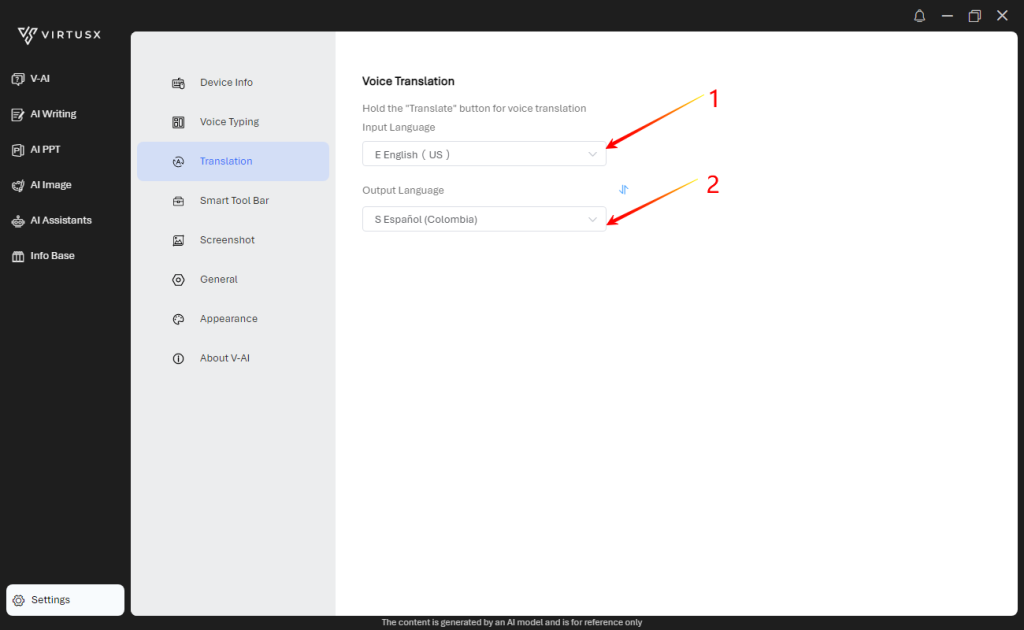
To use voice translation, you need to configure both your input language (the language you’ll speak) and output language (the language for translation):

  1. Select your Input Language – this is the language you will speak
  2. Select your Output Language – this is the language your speech will be translated into
Language selection for translation – Choose your input and output languages

Using Voice Translation

Once you’ve configured your languages, using voice translation is simple:

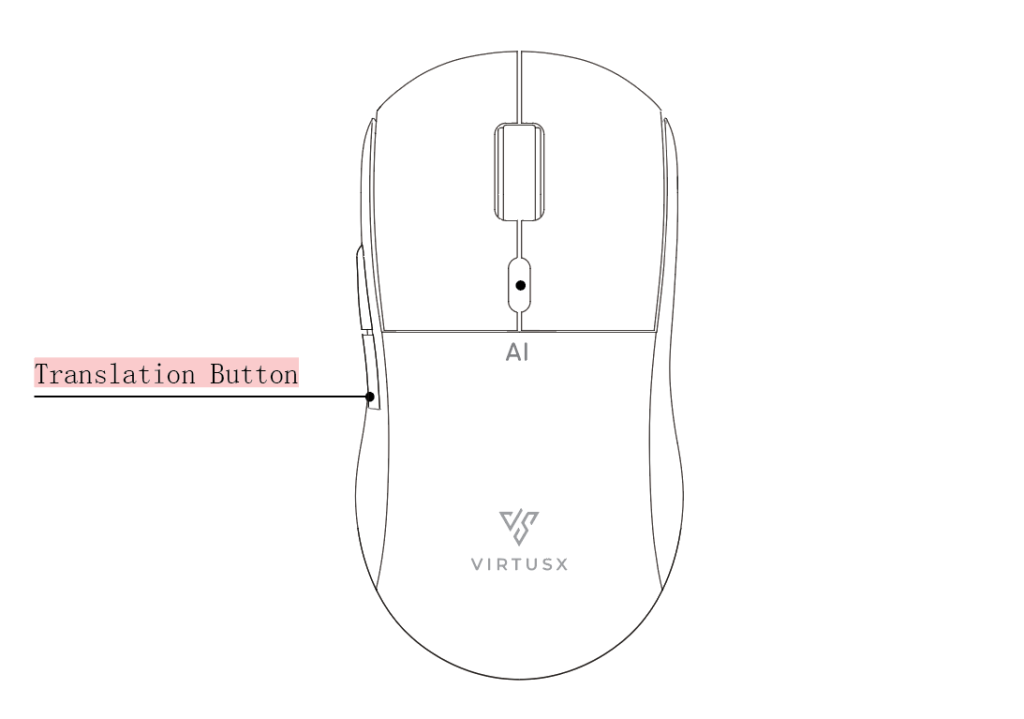
  • Press and hold the Translation button on your mouse
  • Speak in your input language
  • Release the button when you’re finished speaking
  • Your words will be translated and typed in the output language

Language Support:

For best results, speak clearly and at a moderate pace. Complex sentences may take slightly longer to translate accurately.
Tips for Better Voice Typing

Follow these best practices to get the most accurate results from voice typing:

  • Speak clearly and at a moderate pace – Not too fast, not too slow
  • Use a quiet environment – Minimize background noise for better recognition
  • Position the microphone properly – Ideally 6-12 inches from your mouth
  • Speak in complete sentences – This helps the system understand context
  • Say punctuation commands explicitly – Like “period,” “comma,” or “question mark” if needed
  • Check your language settings – Ensure they match the language you’re speaking

Voice Command#

Use voice command to activate V-AI Chat and auto implement the voice typing to V-AI Chat. Voice Command uses the same settings as Voice Typing.

V-AI Chat Voice Command

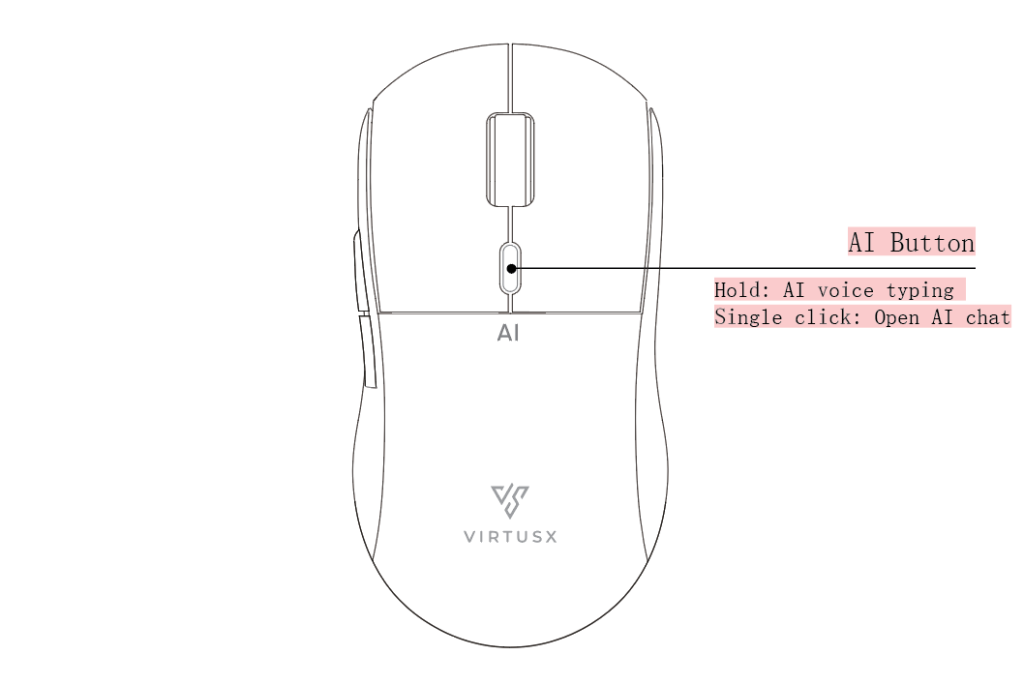
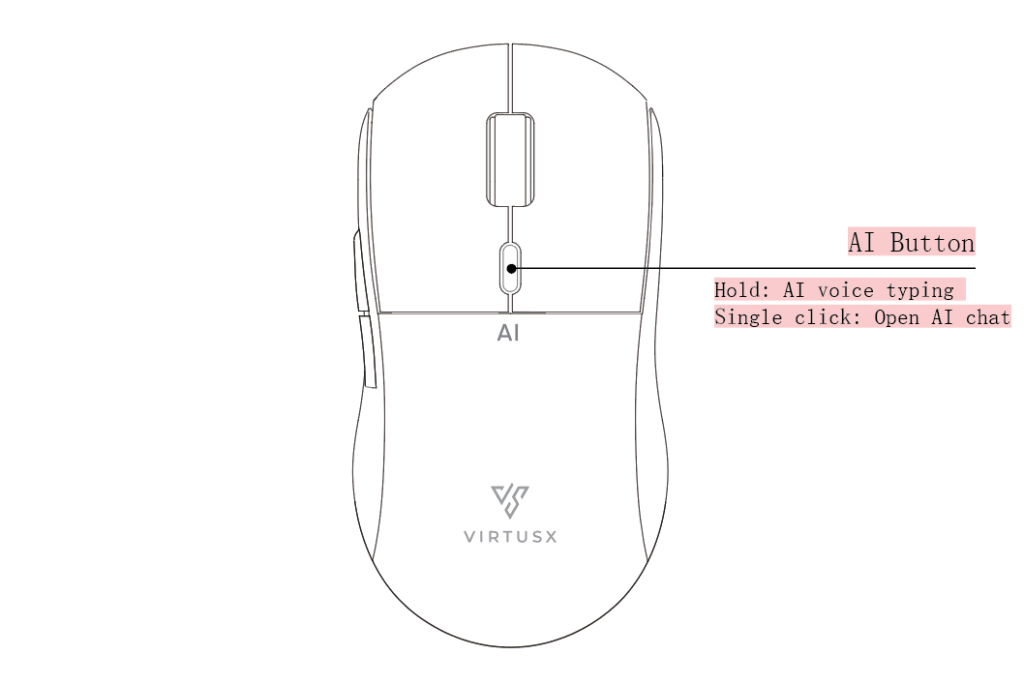
  • Hold the AI button and speak your task.
  • Your command will automatically be typed into the V-AI chat, regardless of which window is open.
  • Once entered, V-AI will start processing your request.

Important

If the voice input language is different from the one you’re speaking, it may not work correctly.

V-AI#

V-AI Chatbot

Activation Methods

  • Activate by single click on the AI button
  • Activate by holding the AI voice typing button and start voice command
  • Activate by voice command
  • Long press the AI button and start speaking

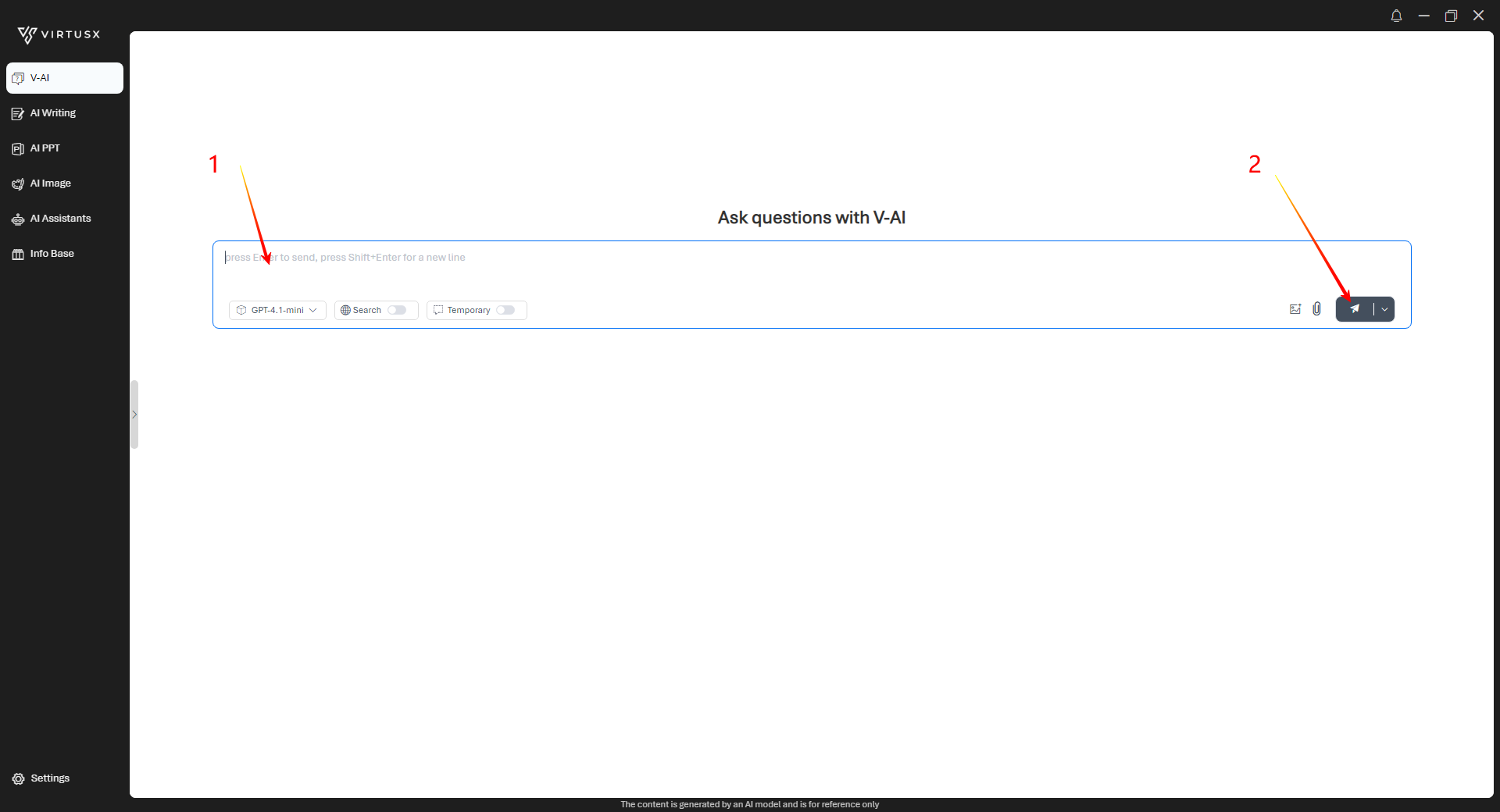
How to Use

  • Input your questions
  • Click the Send button or press Enter

AI Language Modes

  • AI Language Modes
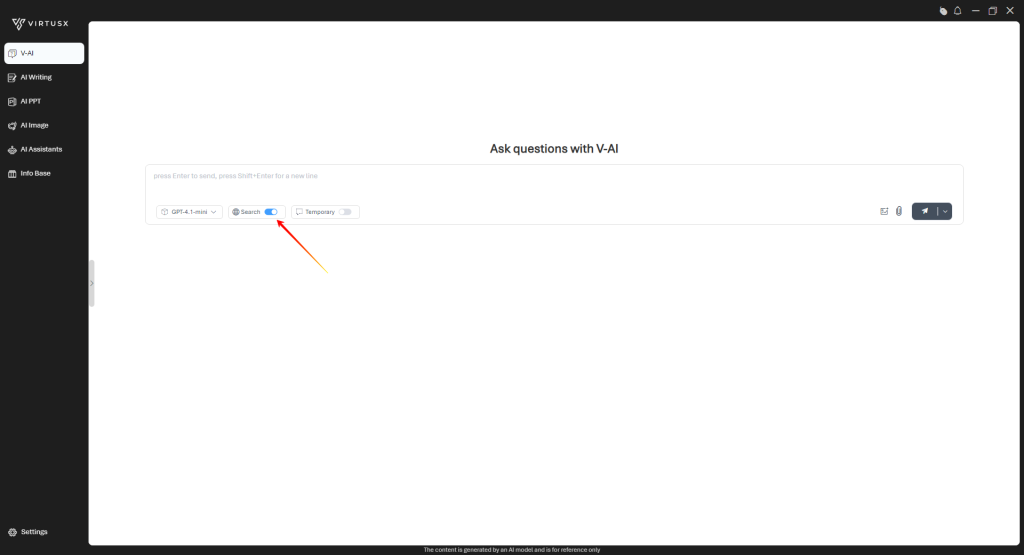
  • Search Mode
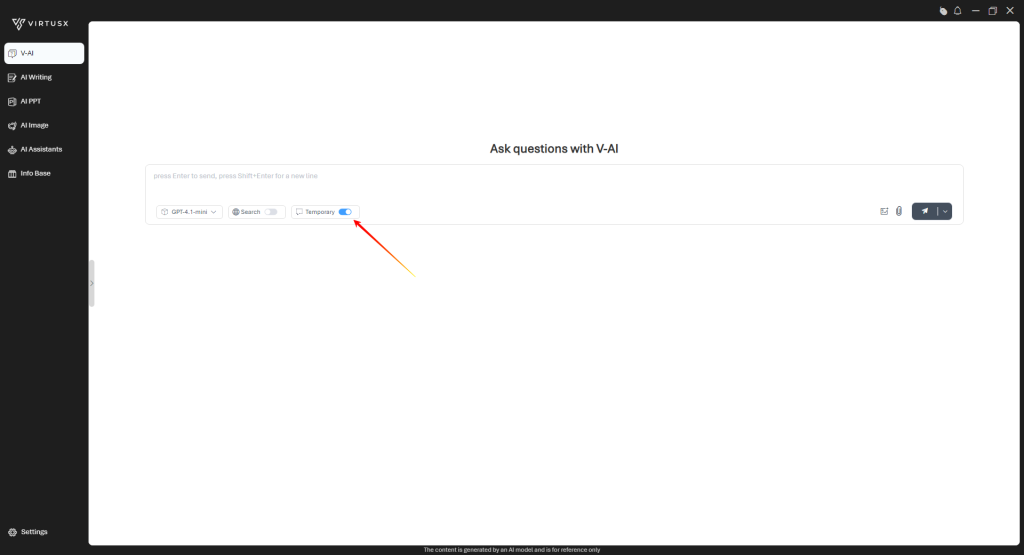
  • Temporary Mode

AI Language Modes#

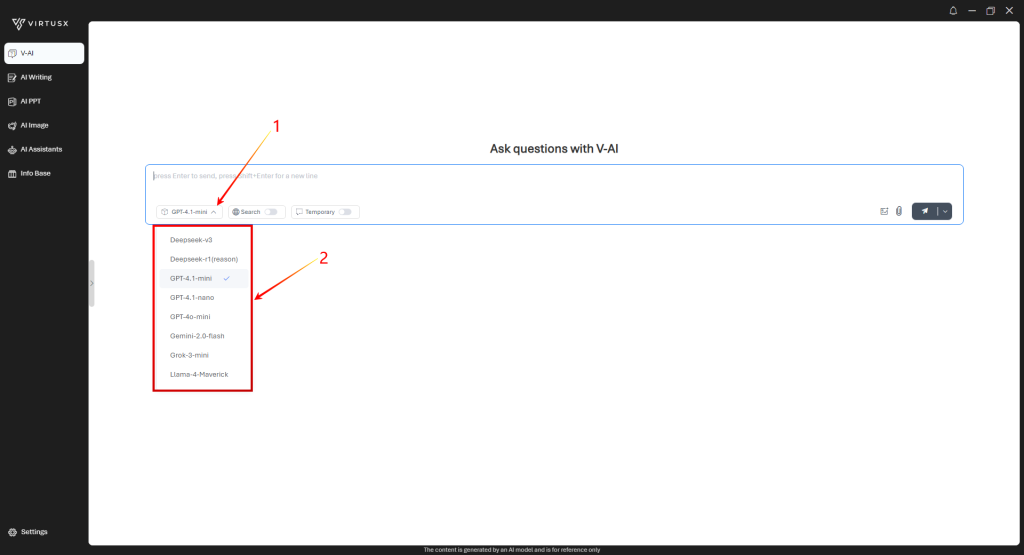
Select Language Modes

  • Click AI Language Modes Dropdown icon
  • Select the AI Language Models

Search Mode

AI Chat with AI-powered search and retrieval underneath technology

Temporary Mode

The chat history will not be saved in Temporary Mode.
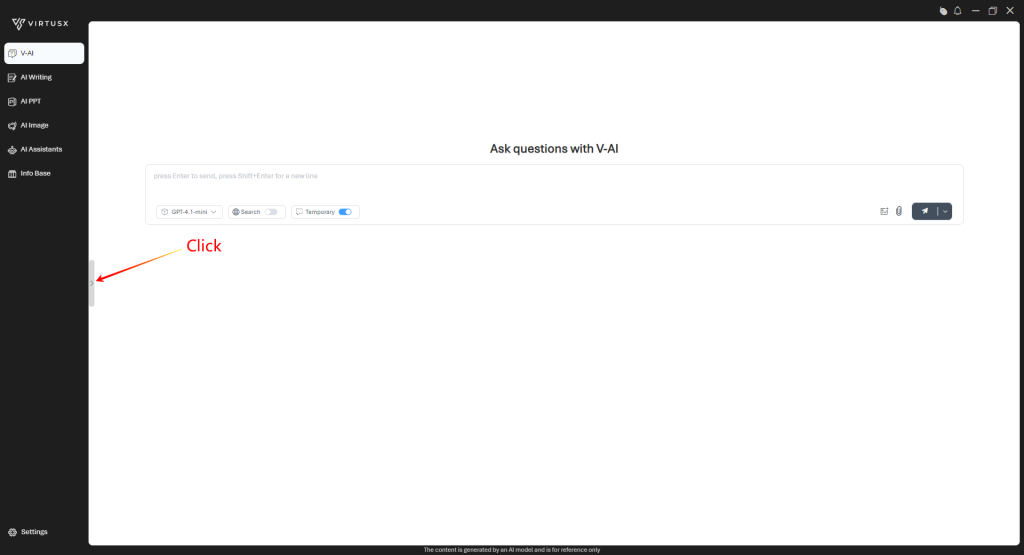
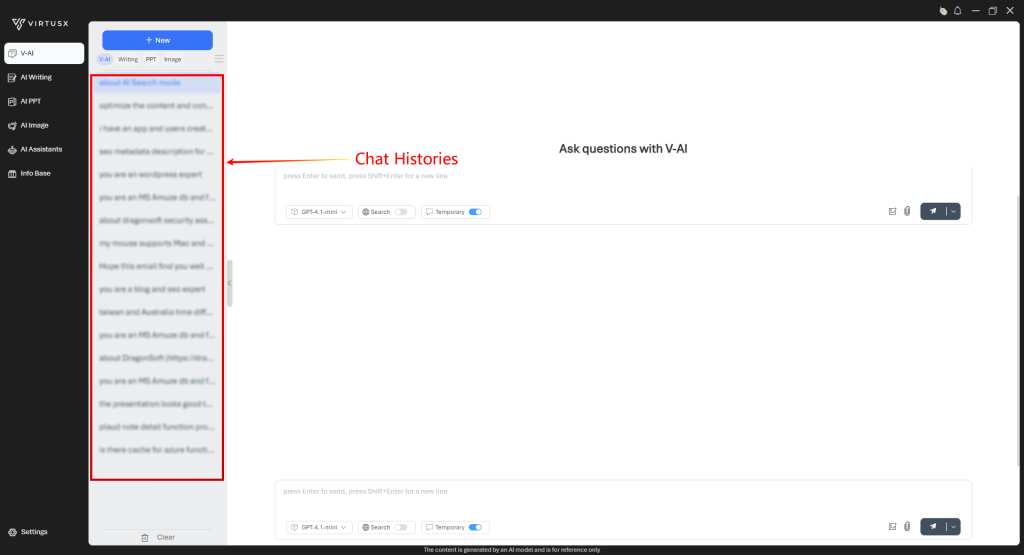
Chat History

The chat history will be saved on the local computer and can be viewed in the following screenshot.
V-AI Chat With Images or Files#

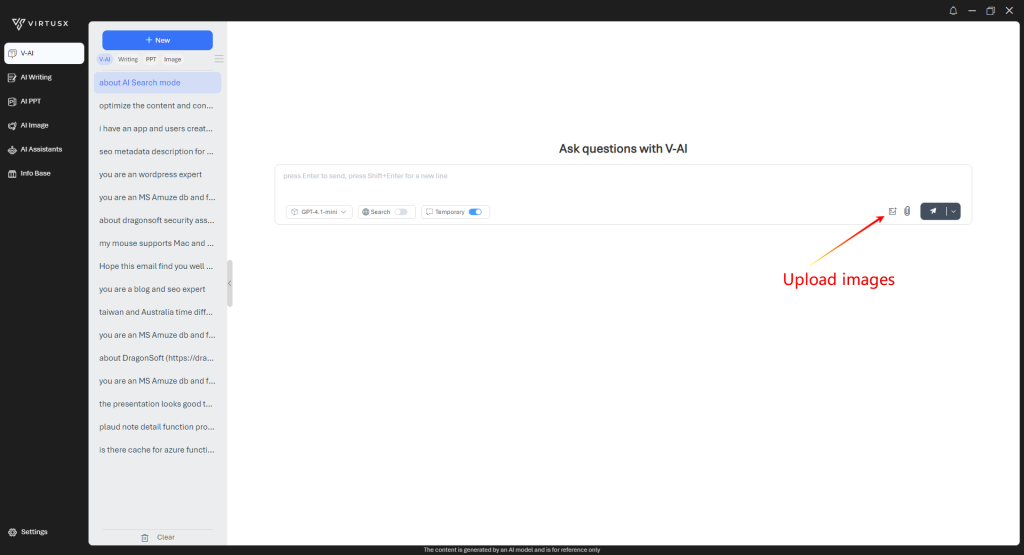
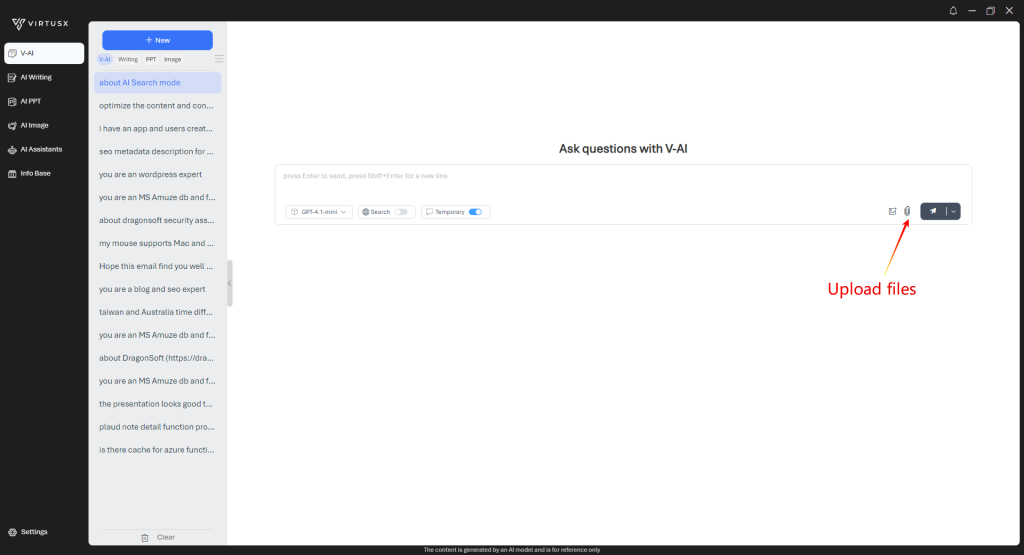
V-AI Chat with Images or Files is a powerful conversational AI feature that allows users to interact through both text and visual/file inputs, enabling richer, more versatile, and context-aware conversations.

  • Upload images and then ask questions in V-AI Chat
  • Upload files and ask V-AI questions

AI Writing#

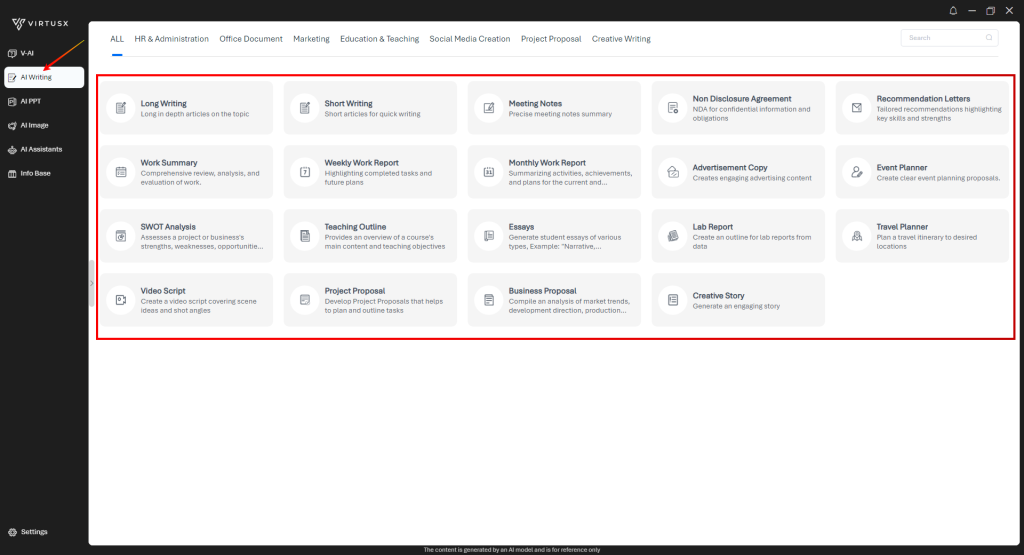
Virtusx AI Writing with specific modes leverages the AI’s flexibility to produce well-structured, purpose-driven content tailored to different formats such as long-form articles, academic essays, or business proposals. This functionality is ideal for users seeking specialized writing outputs that meet professional or academic standards efficiently and reliably.

Long Writing#

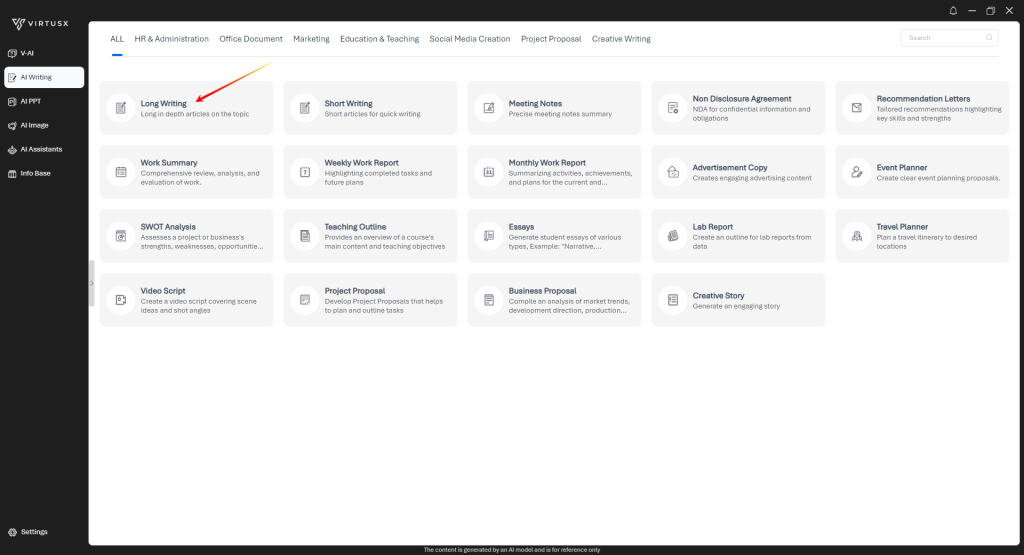
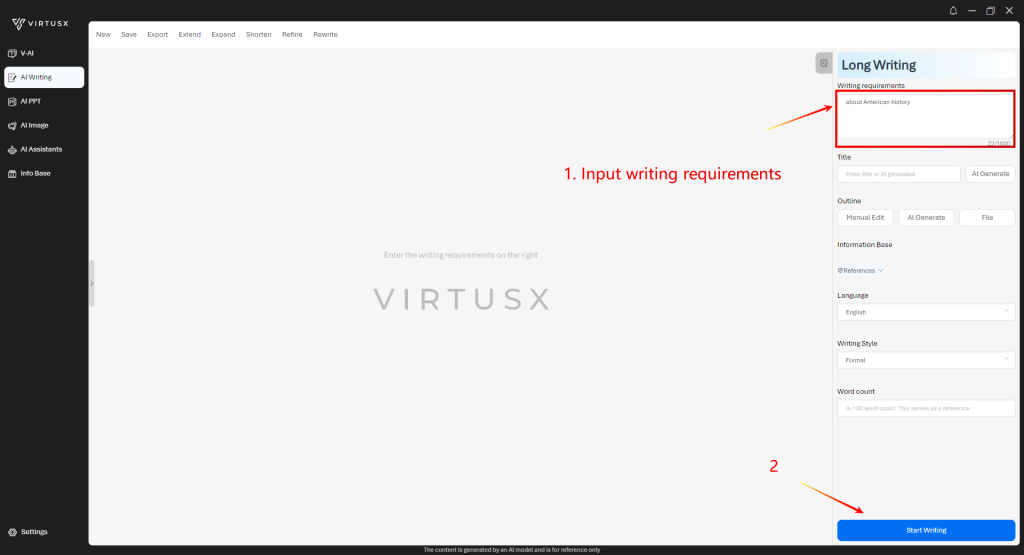
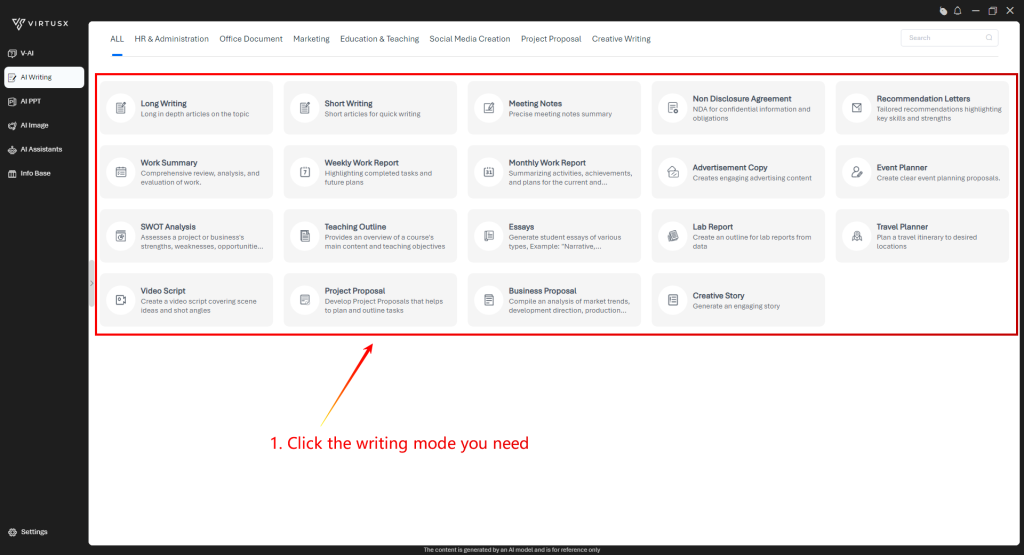
  • Click Long Writing icon
  • Input Writing Requirement then click Start Writing.
  • Options: upload reference files, select output Language, or Writing Style.
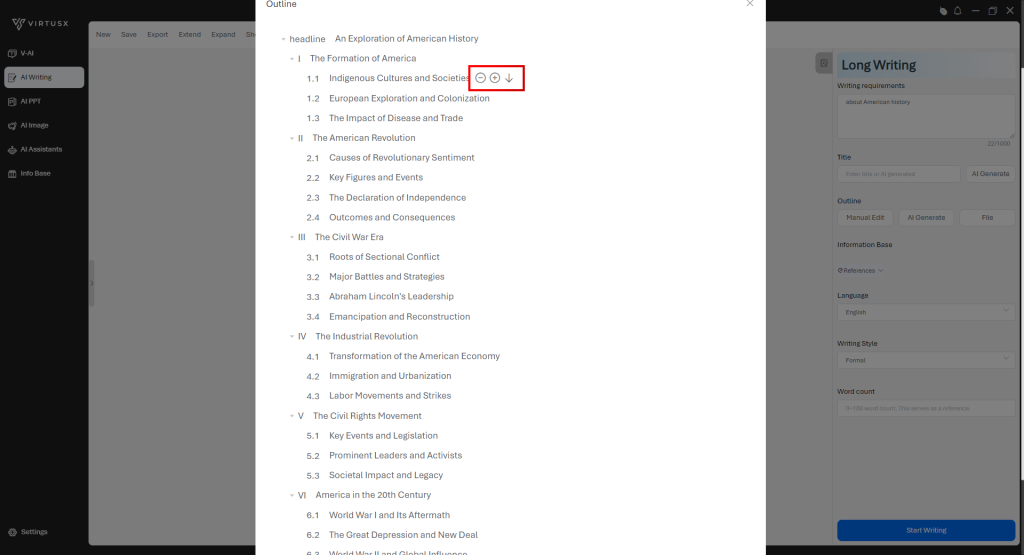
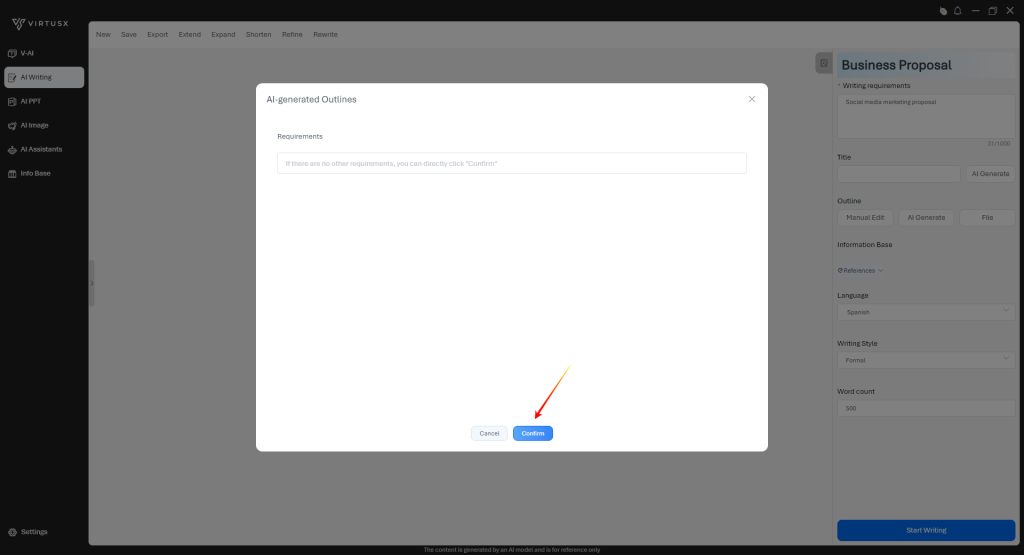
  • Click Confirm to generate the outlines.
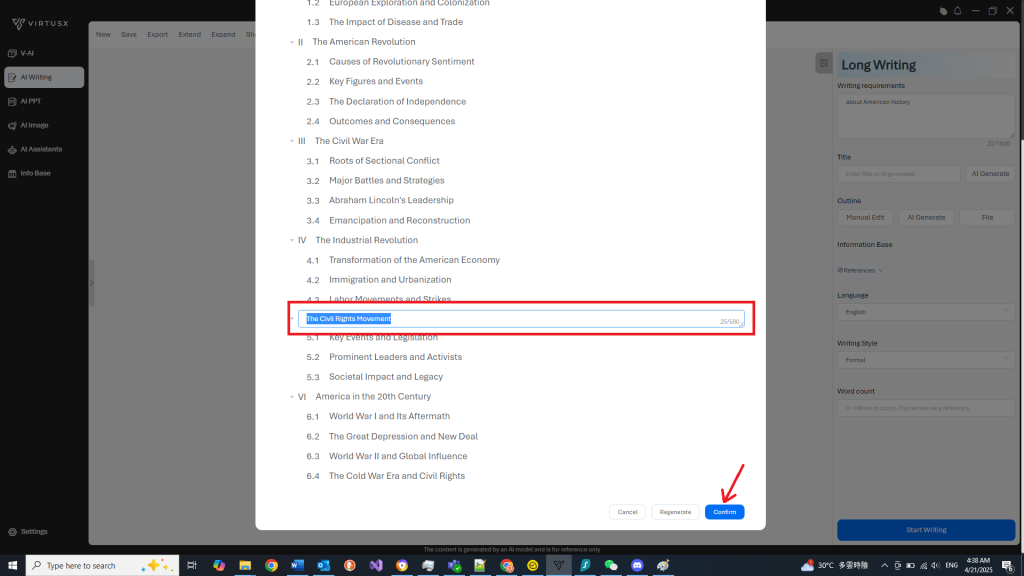
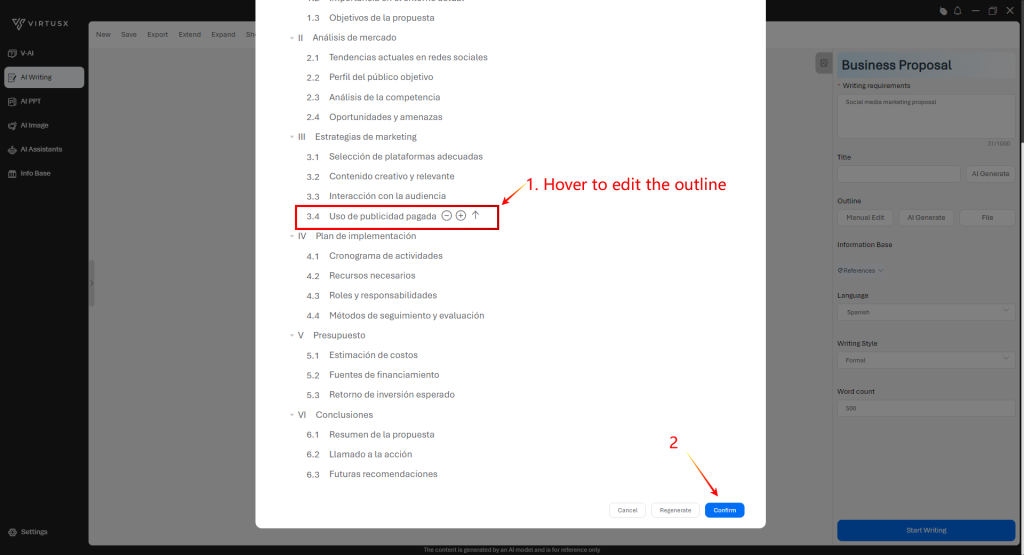
  • Edit outlines by hovering over or clicking on the outline you want to change.
  • Click Confirm to continue generating the content.
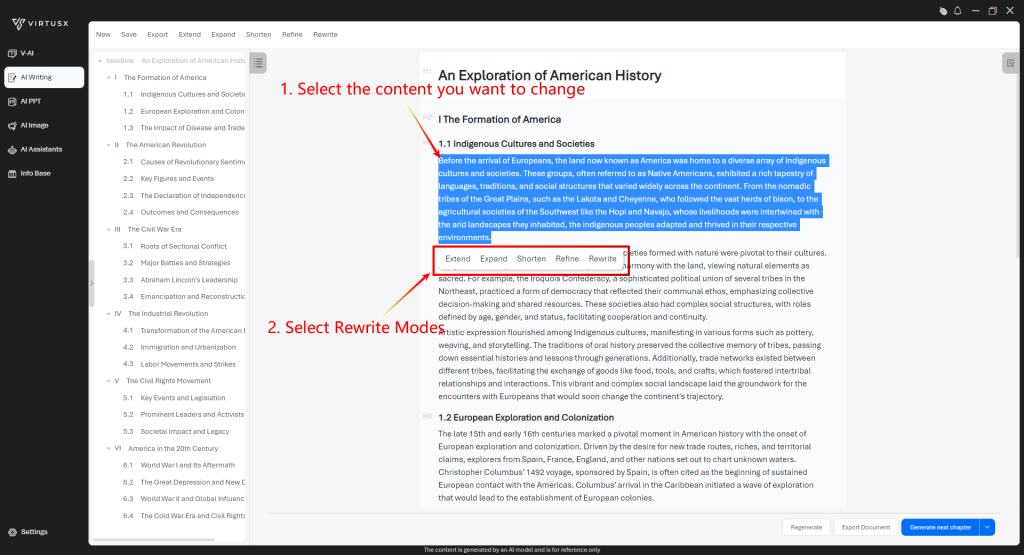
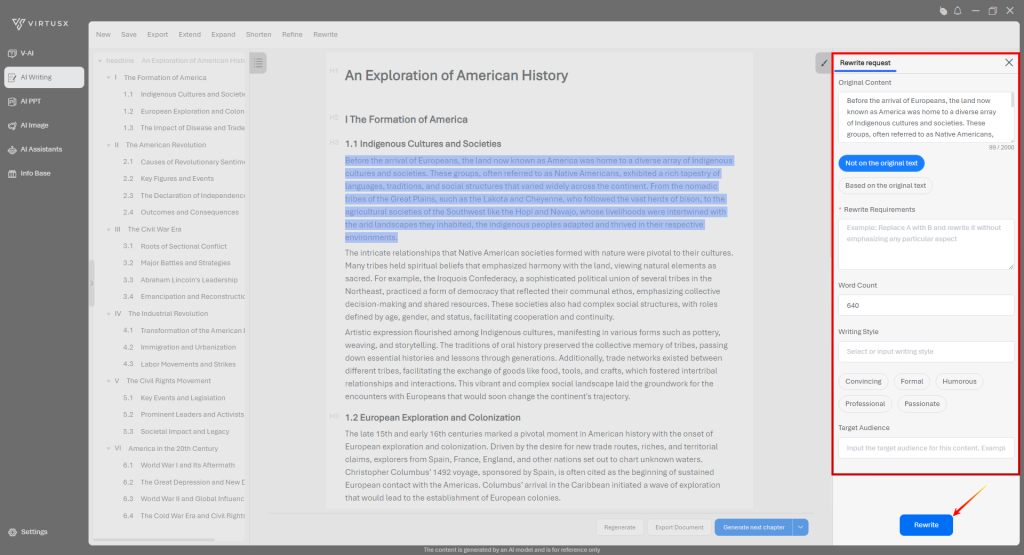
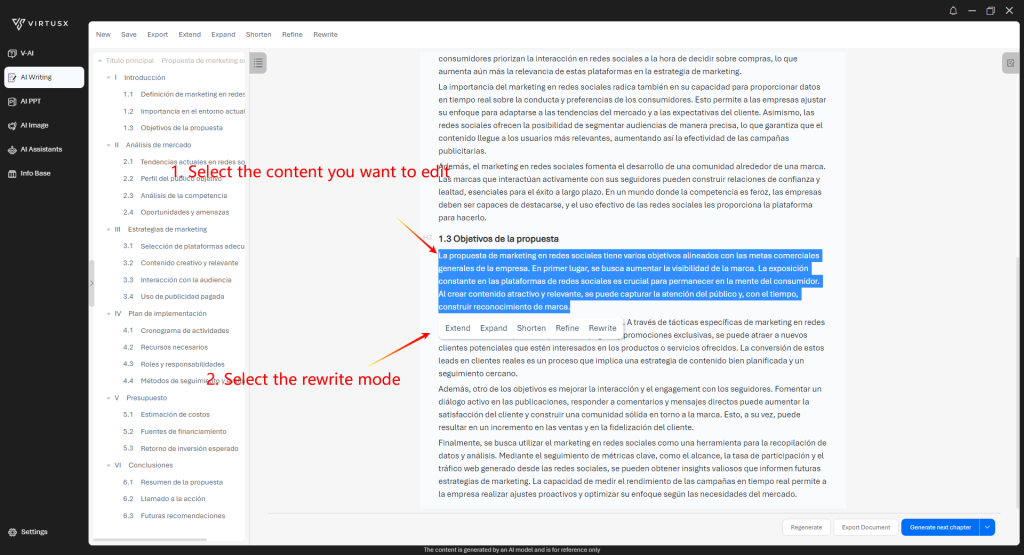
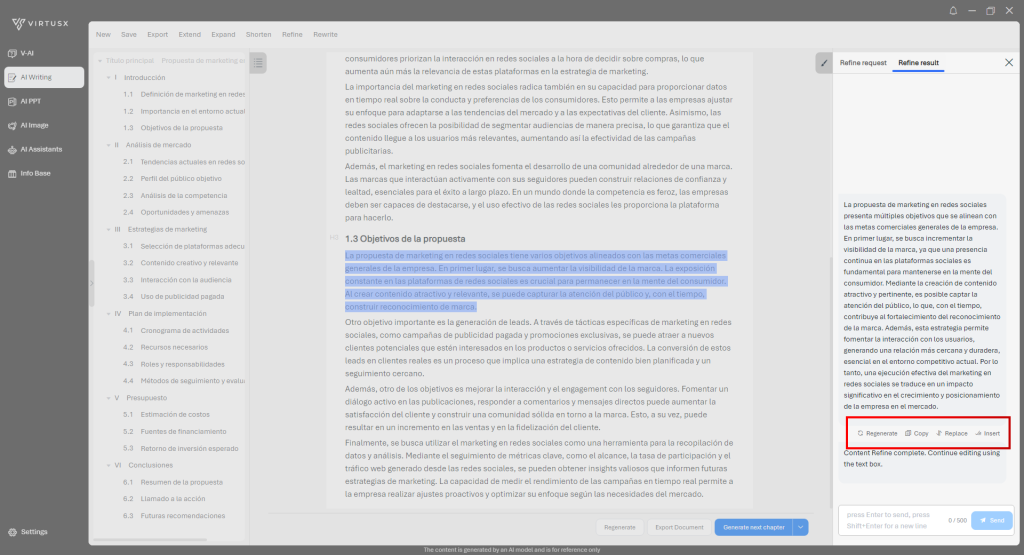
  • Modify the generated content by selecting the texts then click Rewrite mode such as Extend or Expand.
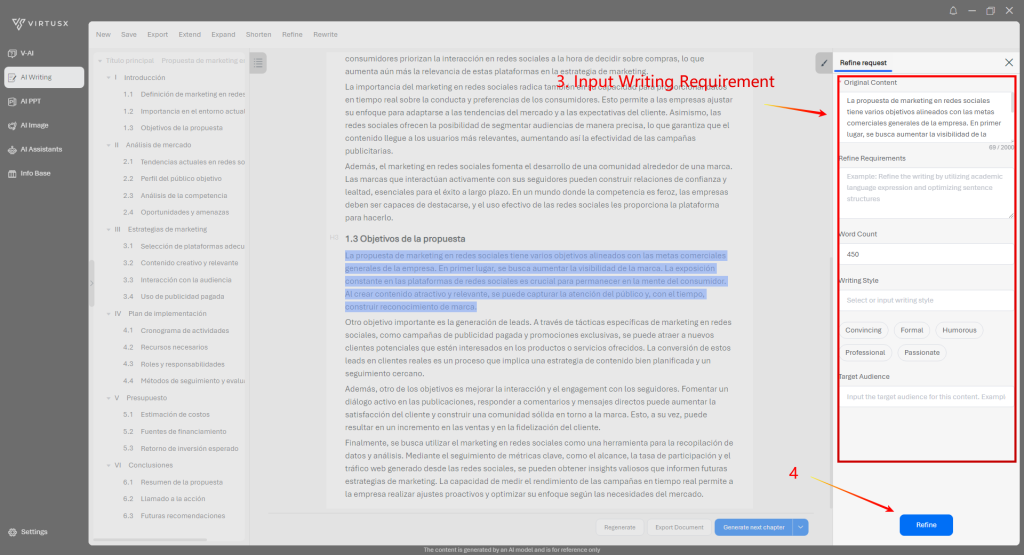
  • Input Writing Requirements then click Rewrite.
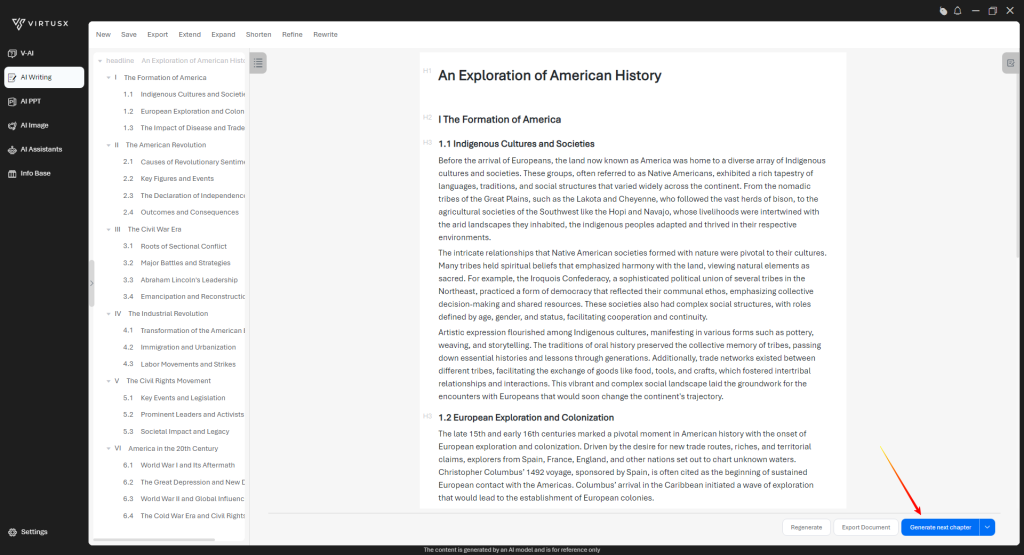
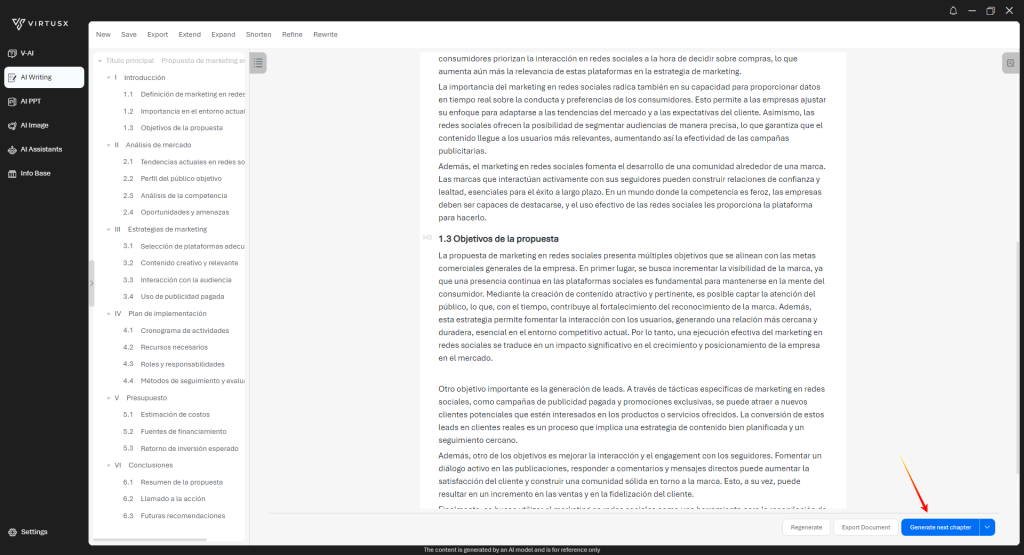
  • Click Generate Next Chapter to generate contents. After generated all chapters.
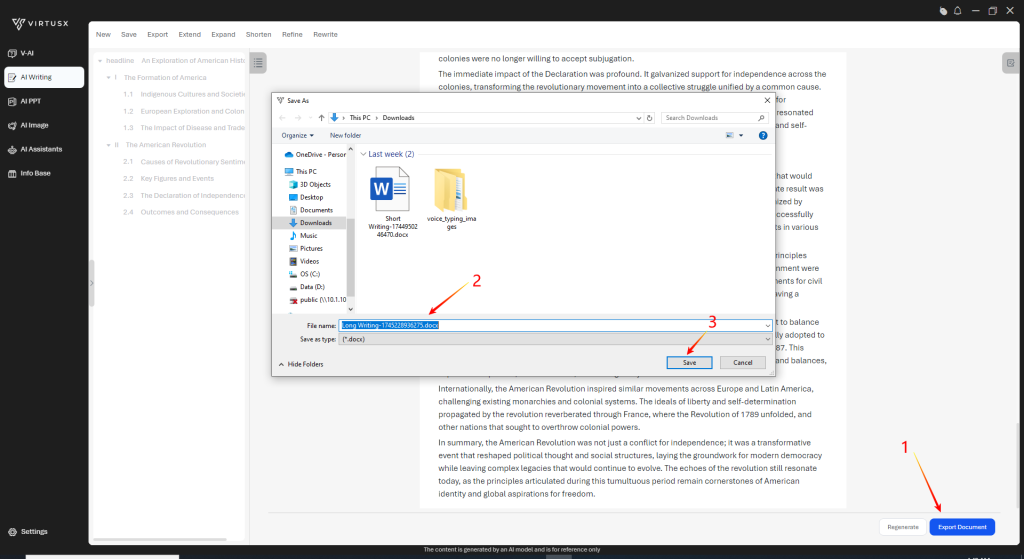
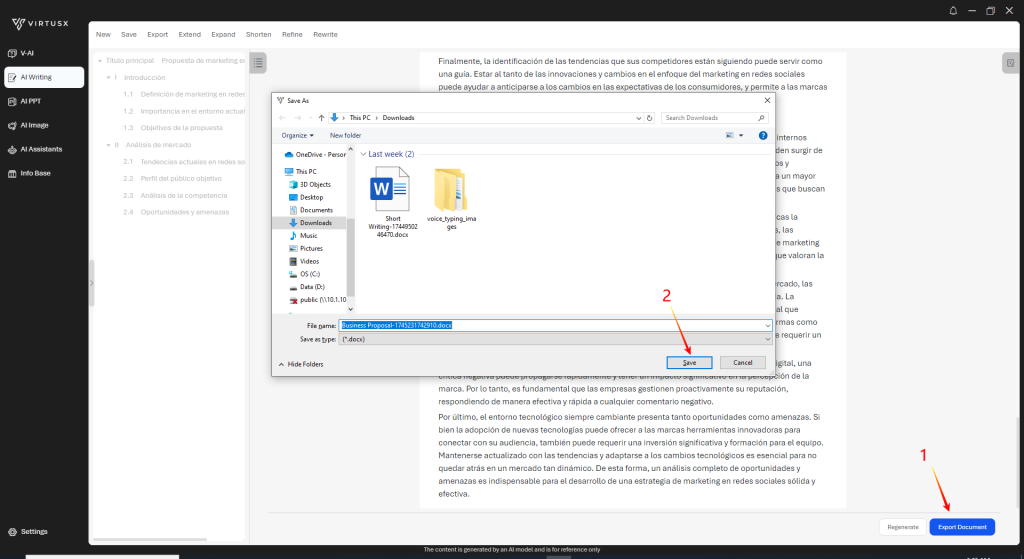
  • Click Export to save as a Word document

Business Proposal#

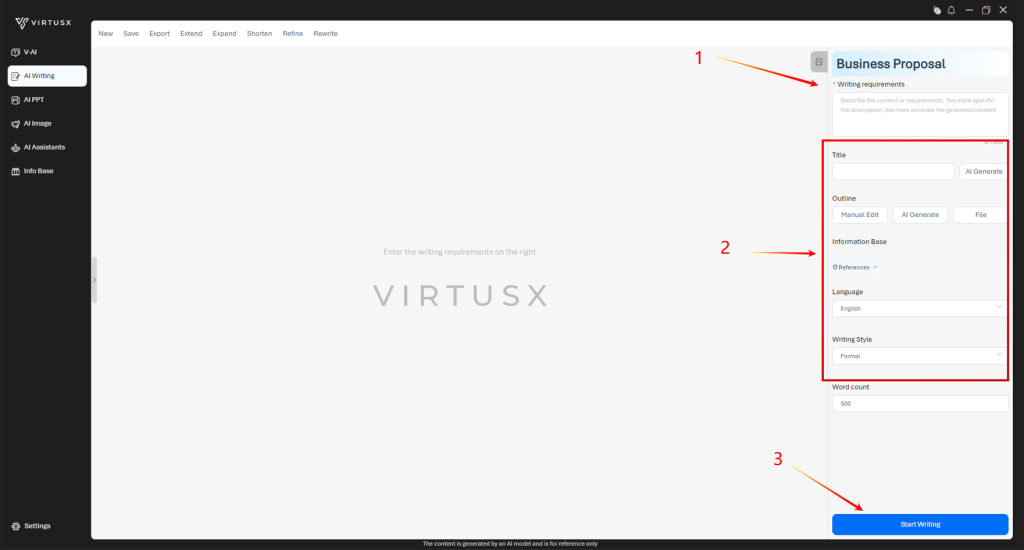
  • Input Writing Requirement then click Start Writing.
  • Options: upload reference files, select output Language, or Writing Style.
  • Click Confirm to generate the outlines.
  • Edit outlines by hovering over or clicking on the outline you want to change.
  • Click Confirm to continue generating the content.
  • Modify the generated content by selecting the texts then click Rewrite mode such as Extend or Expand.
  • Input Writing Requirements then click Rewrite.
  • Click Generate Next Chapter to generate contents. After generated all chapters.
  • Click Export to save as a Word document

Other Writing Modes#

  • Short Writing
  • Meeting Notes
  • Non Disclosure Agreement
  • Recommendation Letters
  • Work Summary
  • Weekly Work Report
  • Monthly Report
  • Advertisement Copy
  • Event Planner
  • SWOT Analysis
  • Teaching Outline
  • Essays
  • Lab Report
  • Travel Planner

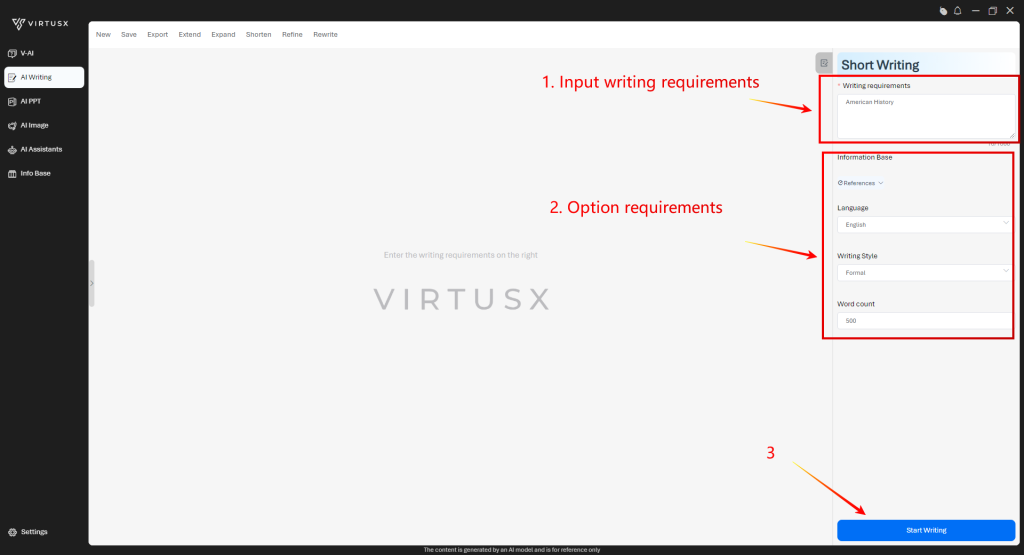
All the writing modes are easy to use with similar steps. Just follow the steps below.

  • Click the writing mode icon to enter the writing mode
  • Input option writing requirement such as
    • Reference documents
    • Output language
    • Writing Style
    • Word Count
  • Click Start Writing button

AI PPT#

Word To PPT#

Click AI PPT > Convert Word to PPT, then select the file by click Computer

After selected the Word document, the following screenshot will display.

  • The word document is loaded
  • Input writing requirements
  • Click Create PPT

After outline generated, you can edit outlines by hover to the outline. Then, click Generate Content

After the content generated, you can edit the content as the following screenshot.

Regenerate the content of any single page as the following screenshot.

Click Generate PPT after finished editing contents.

Select a template to generate PPT

After selected a template, the PPT will be generated, then you can click Download PPT.

Customize PPT Template#

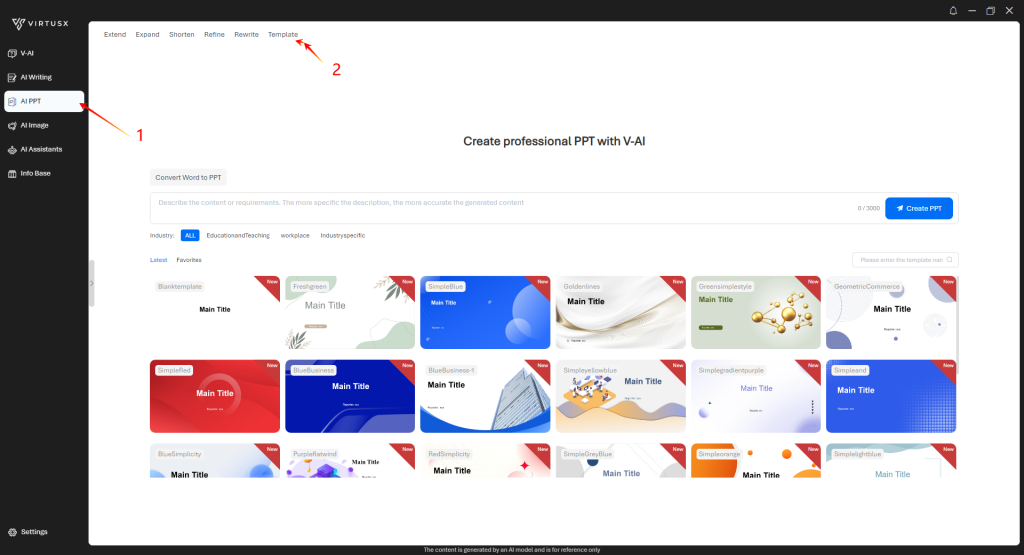
Click AI PPT > Template

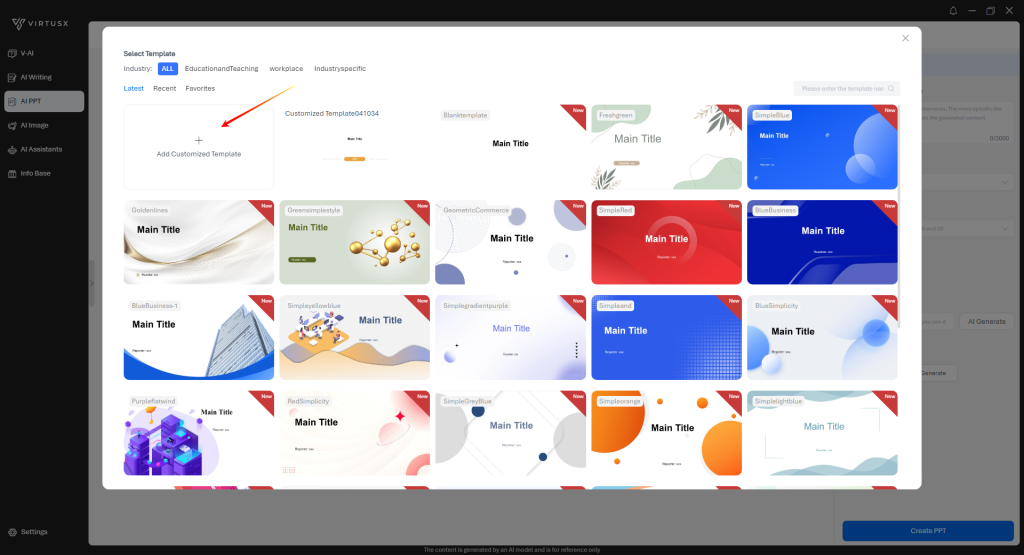
Click Add Customized Template

  • Input customized template name
  • Upload logo
  • Chang theme color

AI Image#

AI Assistants#

AI Summarization#

OCR#

AI Smart Toolbar#

Copyright 2026 Virtusx. All Rights Reserved